
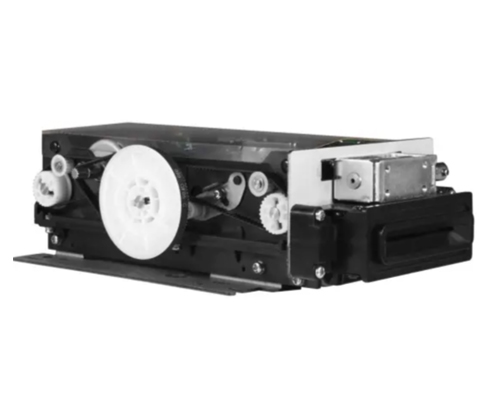
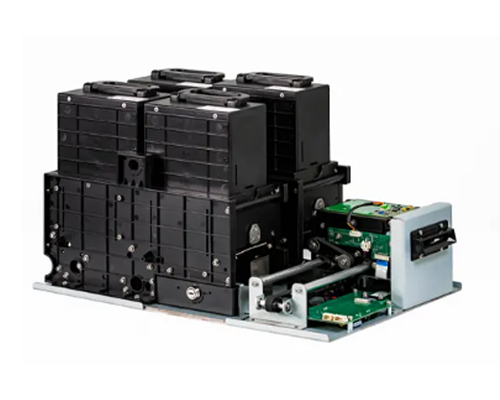



Introduction
Self-service card dispensers run 24/7, so minor issues are inevitable. Card jams, no cards, multiple cards—if these problems aren’t handled promptly, they can affect user experience or even cause system shutdown.
As maintenance staff, mastering common troubleshooting methods can reduce on-site repair needs by 80%.This article compiles the top 10 issues handled by the SNR technical support team over the past year, along with detailed troubleshooting steps and a list of error codes.
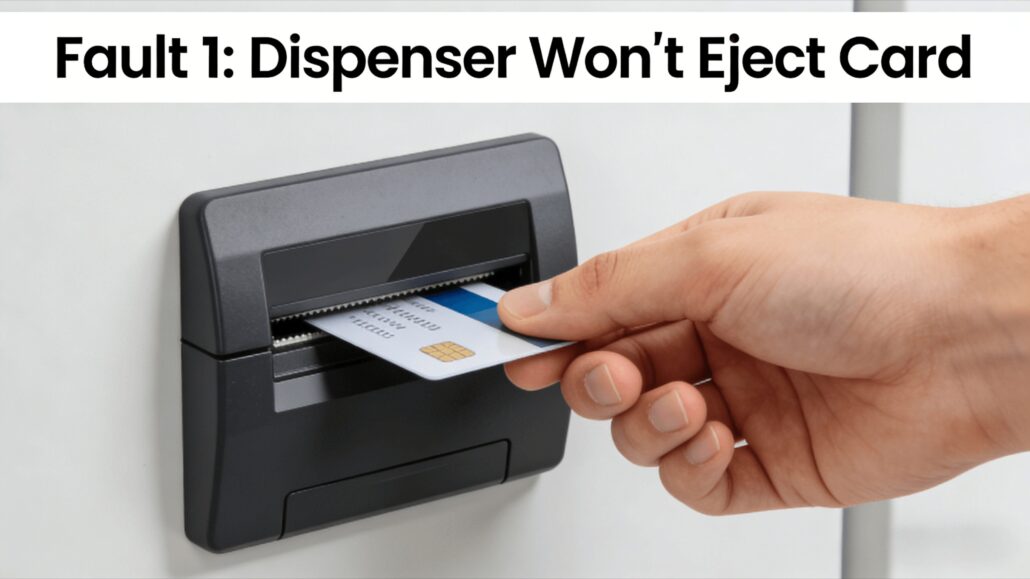
Fault 1: Dispenser Won’t Eject Card
Phenomenon
-
Driver presses button, no card comes out
-
Screen shows “Dispensing card” but no card
Possible Causes & Solutions
| Cause | Check Method | Solution |
| Hopper empty | Check screen for “low card” alert | Add cards |
| Card jammed in Channel | Open front cover, check for jam | Manually rotate side roller, remove card |
| Motor failure | Listen for motor sound | Contact support for motor replacement |
| Dirty sensor | Check sensor for dust | Clean sensor with alcohol swab |
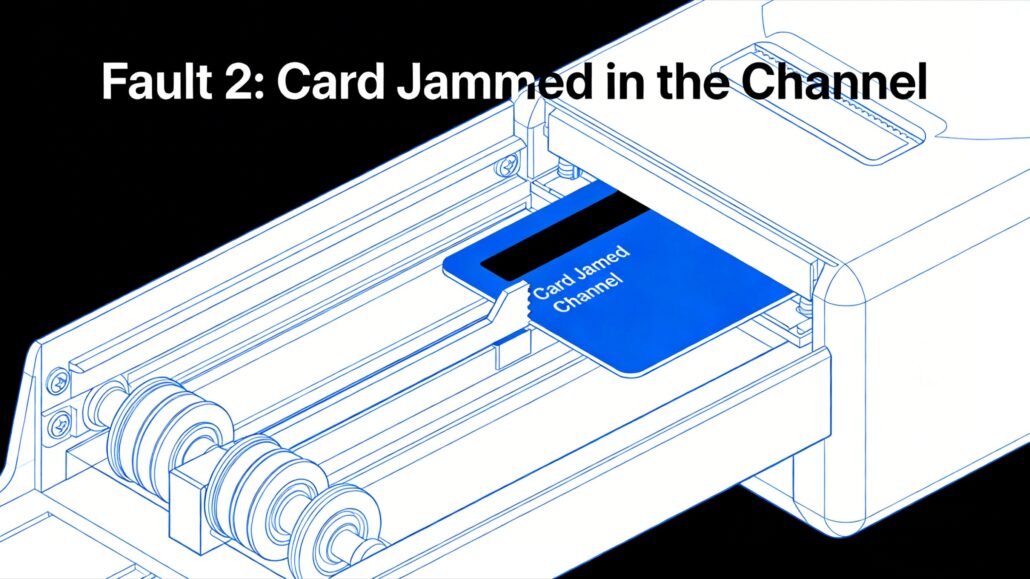
Fault 2: Card Jammed in the Channel
Phenomenon
-
Card comes out halfway then jams
-
Subsequent cards can’t be dispensed
Solution (3-Step Method)
Step 1: Power Off
-
Cut power first for safety
Step 2: Manual Clearing
-
Locate side manual roller
-
Turn clockwise, observe card movement direction
-
Remove card from outlet
Step 3: Reset
-
Restore power
-
Press reset button (if available)
-
Test 1-2 cards
Prevention:
-
Clean rollers monthly
-
Check cards for bending or damage
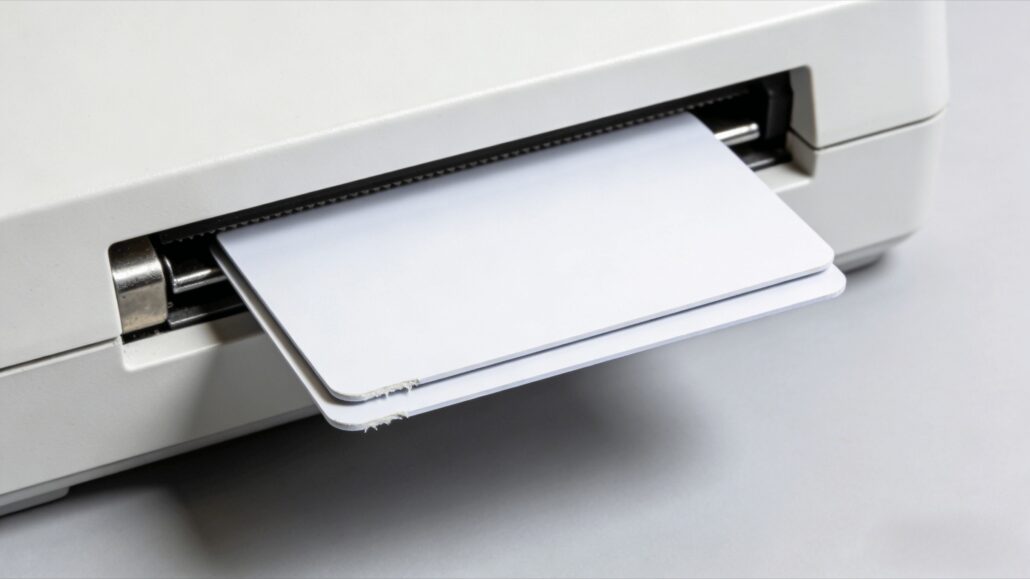
Fault 3: Multiple Cards Dispensed at Once
Phenomenon
-
One button press, 2 or more cards come out
-
Wastes cards,counter inaccurate
Causes
-
Worn rollers
-
Cards sticking (static or humidity)
-
Cards too thin
Solutions
| Cause | Solution |
| Worn rollers | Replace roller kit |
| Cards sticking | Check for moisture, replace with dry cards |
| Cards too thin | Adjust thickness knob to increase friction |
Fault 4: Dispenser Doesn’t Recognize Card
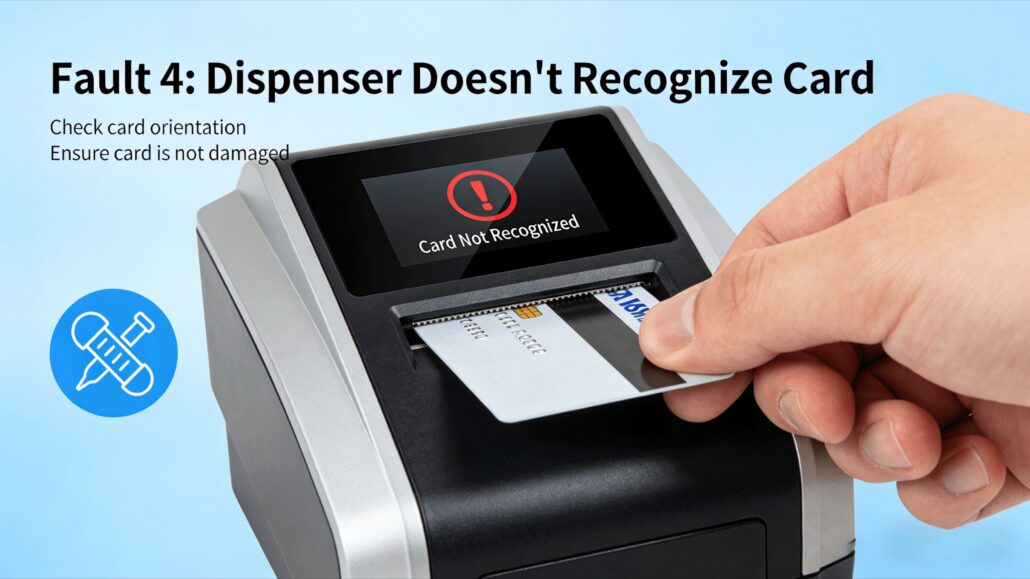
Phenomenon
-
Card dispensed, but system shows “Invalid card”
-
Read/write fails
Troubleshooting Steps
-
Check Card Type
-
Is it IC card or ID card?
-
Does it match read/write module?
-
-
Clean Read/Write Head
-
Use dedicated cleaning card or alcohol swab
-
-
Check Antenna Position
-
Is card stopping at RF read/write area?
-
SNR card dispensers support multiple stop positions, confirm correct setting
-
Fault 5: Alarm Sounds But No Error Code
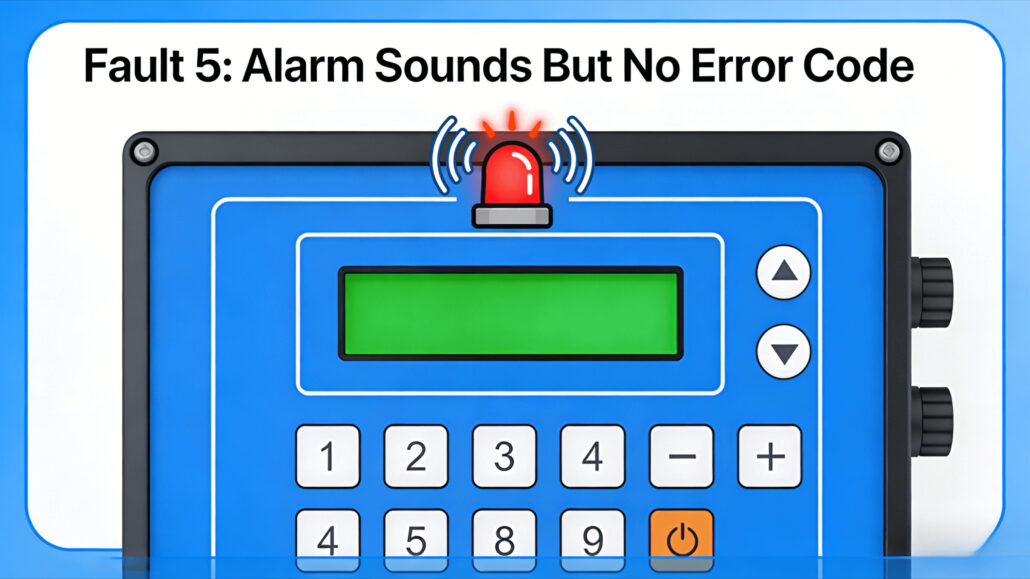
Phenomenon
-
Buzzer sounds
-
Screen shows no error code
Solutions
Step 1: Check Alarm Light Status
-
Red steady: Serious fault
-
Red flashing: Low card/full bin warning
Step 2: Check Connections
- Is the data cable loose?
- Is the power cord working properly?
Step 3: Restart
-
Power off for 30 seconds, restart
-
70% of temporary faults resolved by restart
| Appendix: SNR Card Dispenser Error Code Table (2026) | ||
| Code | Meaning | Solution |
| E01 | Hopper empty | Add cards |
| E02 | Card jammed in Channel | Manual clearing |
| E03 | Recycling bin full | Empty bin |
| E04 | Motor failure | Contact support |
| E05 | Sensor failure | Clean sensor |
| E06 | Read/write module error | Check antenna connection |
| E07 | Communication timeout | Check data cable |
| E08 | Over-temperature | Check cooling |
| E09 | Voltage error | Check power supply |
| E10 | Card thickness mismatch | Adjust thickness knob |
Monthly Maintenance Checklist
To reduce errors, perform monthly:
-
Clean sensors (alcohol swab)
-
Check roller wear
-
Test 10 cards,check for abnormalities
-
Check and empty recycling bin
-
Update firmware (if new version available)
Need Professional Repair?
If以上 methods don’t resolve, contact SNR Technical Support:
-
WeChat/WhatsApp: +86 118617102760
-
Email: sales@snroprinter.com
-
Hours: Monday-Saturday 9:00-20:00 (Beijing time)
Please provide: Model, error code, fault video/photo → Quick diagnosis