


Blog
Top 5 Card Dispenser Faults & Solutions | SNR Troubleshooting Guide

Introduction
Card dispenser issues such as card jams, double-card feeding, sensor errors, unreadable RFID cards, or communication failures are among the most common challenges in self-service kiosks and card issuing systems. This guide explains typical faults, causes, and practical troubleshooting steps used by engineers and system integrators.
In This Guide
- Card Jam Problems
- Double Card Feeding
- RFID Reading Failure
- Card Not Dispensing
- Communication Errors
- Sensor Faults
- Motor Failure
- Power Problems
- Preventive Maintenance
- Recommended Card Dispenser Models
Fault 1: Dispenser Won’t Eject Card
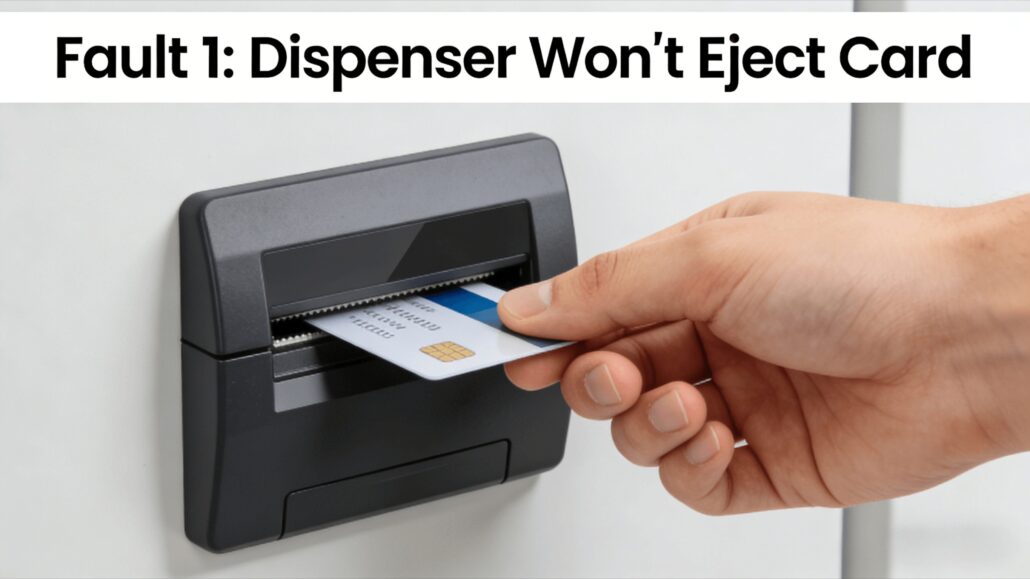
Symptoms
- Driver presses button, no card comes out
- Screen shows “Dispensing card” but no card
Possible Causes & Solutions
| Cause | Check Method | Solution |
| Hopper empty | Check screen for “low card” alert | Add cards |
| Card jammed in Channel | Open front cover, check for jam | Manually rotate side roller, remove card |
| Motor failure | Listen for motor sound | Contact support for motor replacement |
| Dirty sensor | Check sensor for dust | Clean sensor with alcohol swab |
Related Products:
→ RFID Card Dispenser
→ Motorized Card Dispenser
Fault 2: Card Jammed in the Channel
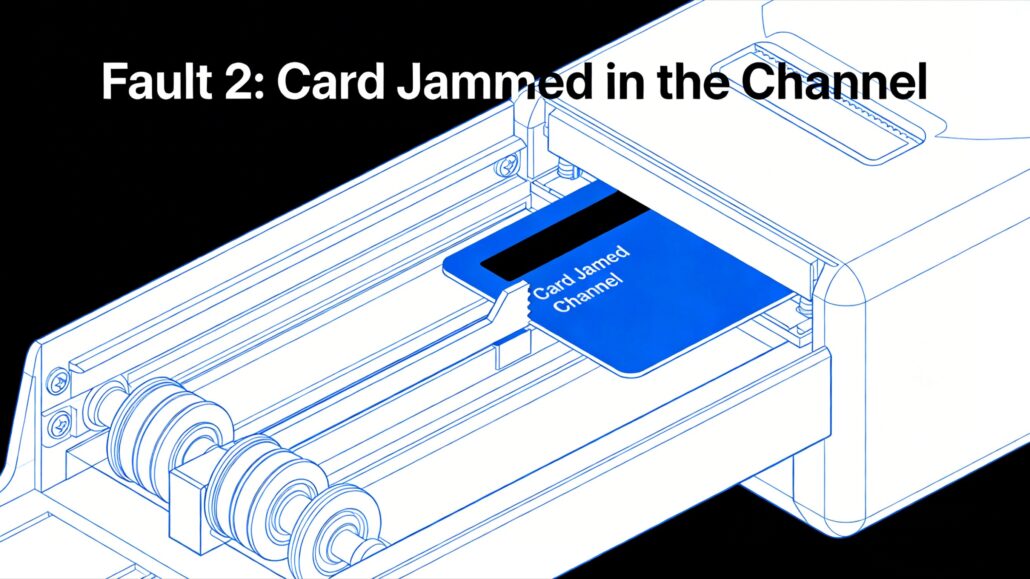
Symptoms
- Card comes out halfway then jams
- Subsequent cards can’t be dispensed
Solution (3-Step Method)
Step 1: Power Off
-
Cut power first for safety
Step 2: Manual Clearing
- Locate side manual roller
- Turn clockwise, observe card movement direction
- Remove card from outlet
Step 3: Reset
- Restore power
- Press reset button (if available)
- Test 1-2 cards
Prevention:
- Clean rollers monthly
- Check cards for bending or damage
Fault 3: Multiple Cards Dispensed at Once
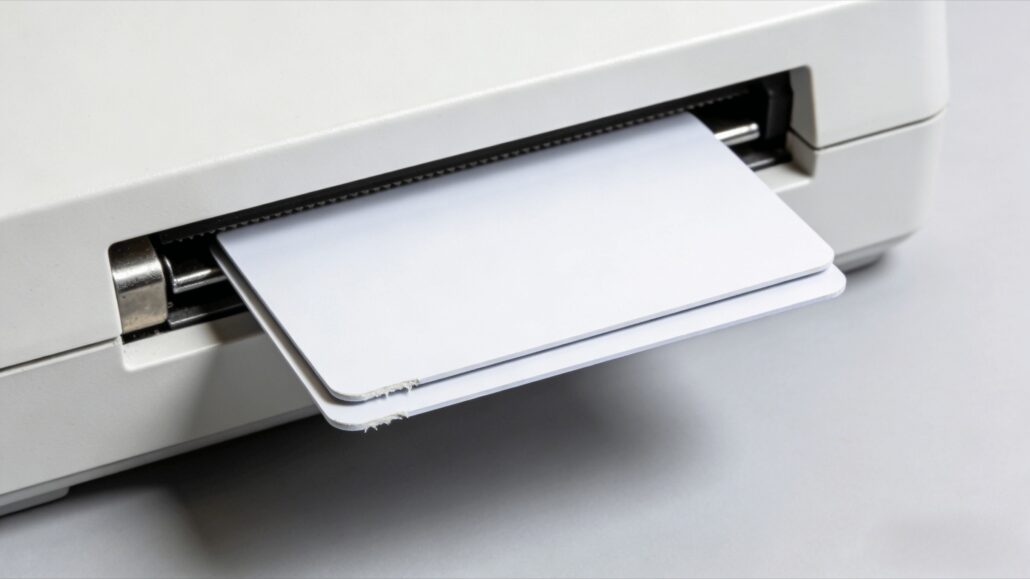
Symptoms
- One button press, 2 or more cards come out
- Wastes cards,counter inaccurate
Possible Causes
- Worn rollers
- Cards sticking (static or humidity)
- Cards too thin
Solutions
| Cause | Solution |
| Worn rollers | Replace roller kit |
| Cards sticking | Check for moisture, replace with dry cards |
| Cards too thin | Adjust thickness knob to increase friction |
Fault 4: Dispenser Doesn’t Recognize Card
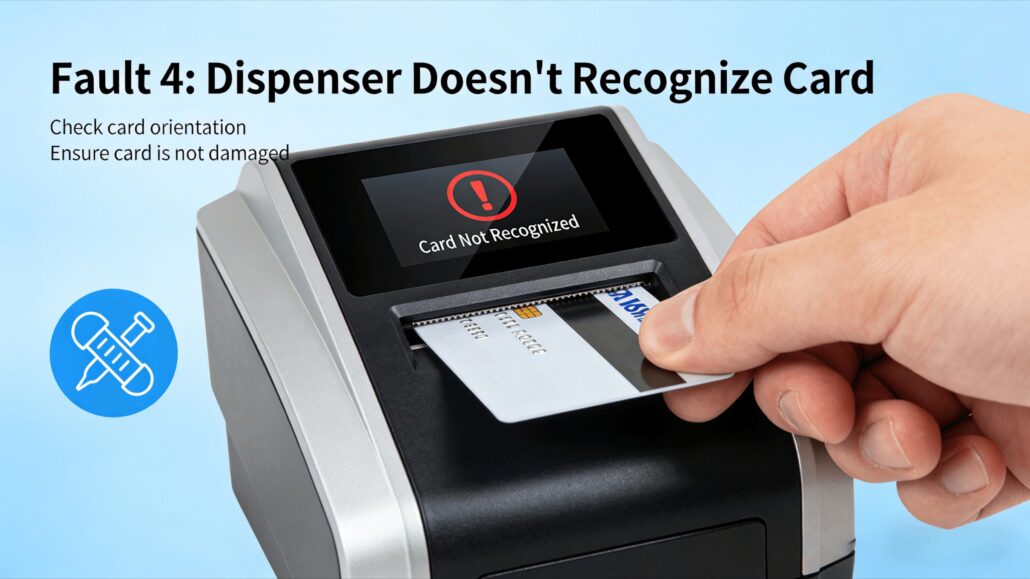
Symptoms
- Card dispensed, but system shows “Invalid card”
- Read/write fails
Troubleshooting Steps
-
Check Card Type
- Is it IC card or ID card?
- Does it match read/write module?
-
Clean Read/Write Head
- Use dedicated cleaning card or alcohol swab
-
Check Antenna Position
- Is card stopping at RF read/write area?
- SNROTEK card dispensers support multiple stop positions, confirm correct setting
Recommended RFID Card Dispensing Solutions
For hotel check-in kiosks, access systems, and self-service applications, SNROTEK provides integrated RFID card dispensers with built-in reader/writer modules and SDK support.
Fault 5: Alarm Sounds But No Error Code
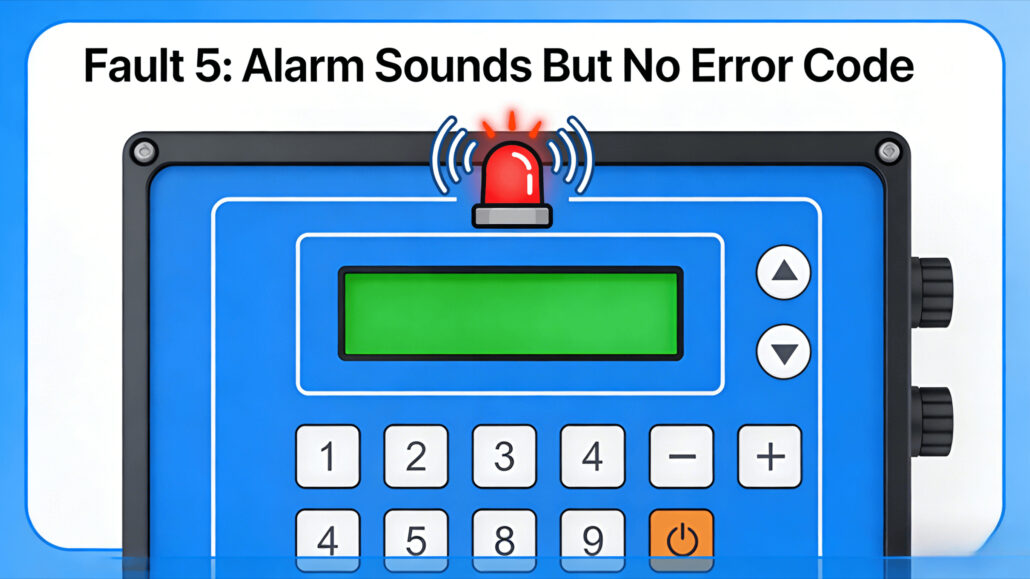
Symptoms
- Buzzer sounds
- Screen shows no error code
Solutions
Step 1: Check Alarm Light Status
- Red steady: Serious fault
- Red flashing: Low card/full bin warning
- Is the data cable loose?
- Is the power cord working properly?
Step 3: Restart
- Power off for 30 seconds, restart
- 70% of temporary faults resolved by restart
| Appendix: SNROTEK Card Dispenser Error Code Table (2026) | ||
| Code | Meaning | Solution |
| E01 | Hopper empty | Add cards |
| E02 | Card jammed in Channel | Manual clearing |
| E03 | Recycling bin full | Empty bin |
| E04 | Motor failure | Contact support |
| E05 | Sensor failure | Clean sensor |
| E06 | Read/write module error | Check antenna connection |
| E07 | Communication timeout | Check data cable |
| E08 | Over-temperature | Check cooling |
| E09 | Voltage error | Check power supply |
| E10 | Card thickness mismatch | Adjust thickness knob |
Monthly Maintenance Checklist
To reduce errors, perform monthly:
- Clean sensors (alcohol swab)
- Check roller wear
- Test 10 cards,check for abnormalities
- Check and empty recycling bin
- Update firmware (if new version available)
Typical Applications
Card dispensing systems are widely used across self-service and automated applications where secure and reliable card issuing is essential. Different environments may present unique operational challenges, making proper hardware selection and maintenance critical for long-term stability.
🏨 Hotel Self Check-in Kiosk
Automatically issue and recycle RFID hotel key cards for smart hotels, self-service check-in terminals, and hospitality access systems.
🚗 Parking System
Support vehicle access management, parking card issuance, and automated entry/exit control systems.
🎫 Ticket Vending System
Ideal for transportation, entertainment, and self-service ticketing kiosks requiring stable card or ticket handling.
🏥 Visitor Management System
Used in hospitals, government offices, and corporate facilities for visitor card issuing and identity management.
Need a customized card dispensing solution? Explore our RFID card dispensers and hotel key card systems designed for seamless kiosk integration.
Frequently Asked Questions
Why does my card dispenser feed two cards at once?
Double-card feeding is usually caused by incorrect card thickness settings, worn separation components, excessive static electricity, or stacked cards sticking together. Check dispenser calibration and inspect card quality before operation.
How can I fix RFID card reading failure?
RFID reading issues may result from card positioning errors, incompatible card standards, signal interference, or reader configuration problems. Verify card specifications, check hardware connections, and test with supported RFID cards.
Can bent or damaged cards cause card jams?
Yes. Warped, damaged, or low-quality cards can easily lead to feeding errors and card jams. Using cards that meet recommended thickness and flatness specifications helps ensure stable performance.
How often should a card dispenser be maintained?
Routine cleaning and inspection are recommended depending on usage frequency. For high-volume applications such as hotel kiosks or ticketing systems, regular maintenance helps prevent dust accumulation and mechanical wear.
Do your card dispensers support SDK integration?
Yes. SNROTEK card dispensers support SDK/API integration for various applications and can be integrated into self-service kiosks, hotel systems, parking systems, and other automated platforms.
Need Technical Assistance or Integration Support?
Looking for RFID card dispensers, hotel key card systems, or customized kiosk hardware solutions? Our team is ready to help with product selection, SDK support, and OEM/ODM requirements.
Explore Card Dispensers →
Contact Technical Team →
Learn more about system architecture: Card Dispenser Hub