

Blog
Android POS vs Windows POS: Which Platform Is Right for Your Business?
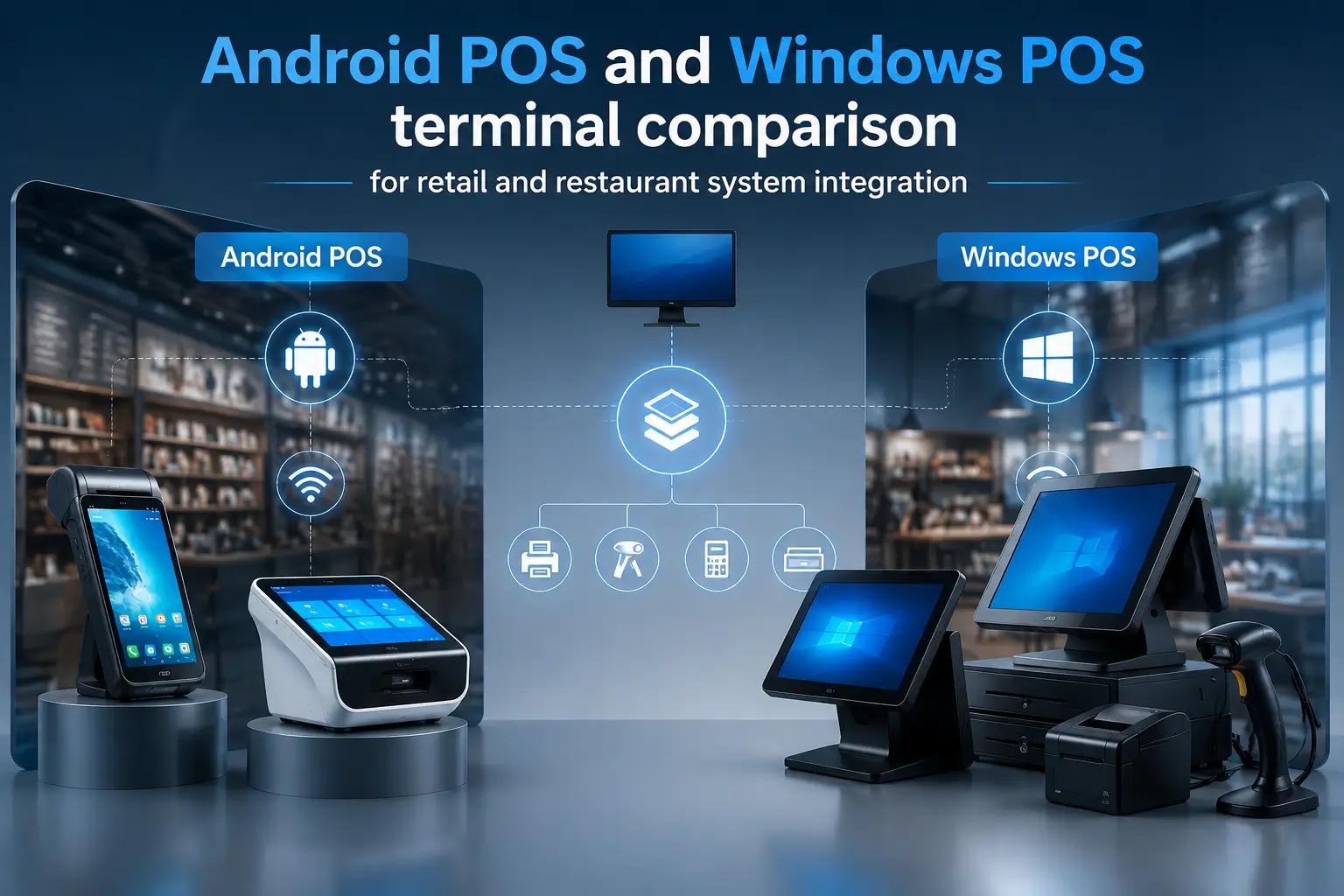
Choosing between Android POS and Windows POS is often presented as a hardware decision.
In real projects, it usually is not.
Both platforms can run POS software. Both can connect to printers, scanners and other peripherals. Both are available in touchscreen POS hardware.
The real difference usually appears when the terminal becomes part of an existing system.
Maybe the customer already has a Windows POS application running in hundreds of stores.
Maybe a restaurant software company is developing an Android application for handheld ordering.
Maybe the system depends on an old barcode scanner, a serial scale or a payment terminal with a platform-specific SDK.
At that point, choosing the operating system is no longer about which terminal looks newer.
It becomes an integration decision.
The first question should usually be:
Which platform fits the software, workflow and hardware environment with the least additional work?
That answer is not always Android.
And it is not always Windows.
Android can be a natural choice for mobile, touch-first and compact POS applications.
Windows can still be the more practical option when an existing POS system already depends on desktop software, established drivers or multiple external devices.
This guide compares Android POS vs Windows POS from a system integration perspective, including:
- Existing POS software
- Retail and restaurant workflows
- Fixed and mobile POS applications
- Peripheral compatibility
- Barcode scanners and receipt printers
- Payment and external device integration
- Hardware form factors
- SDK and driver requirements
- Long-term deployment considerations
The goal is not to declare one platform the winner.
The goal is to help system integrators and POS solution providers avoid selecting hardware first and discovering compatibility problems later.
If you are primarily evaluating Android hardware, our Android POS terminal buying guide covers the main factors to check before selecting a device.
Quick Answer: Android POS vs Windows POS
Android POS is usually a better choice for mobile, handheld and touch-focused applications, while Windows POS is often preferred for existing desktop POS software, complex peripheral integration and fixed retail environments. The right choice depends on software compatibility, workflow and hardware requirements.
Android POS and Windows POS Start from Different Environments
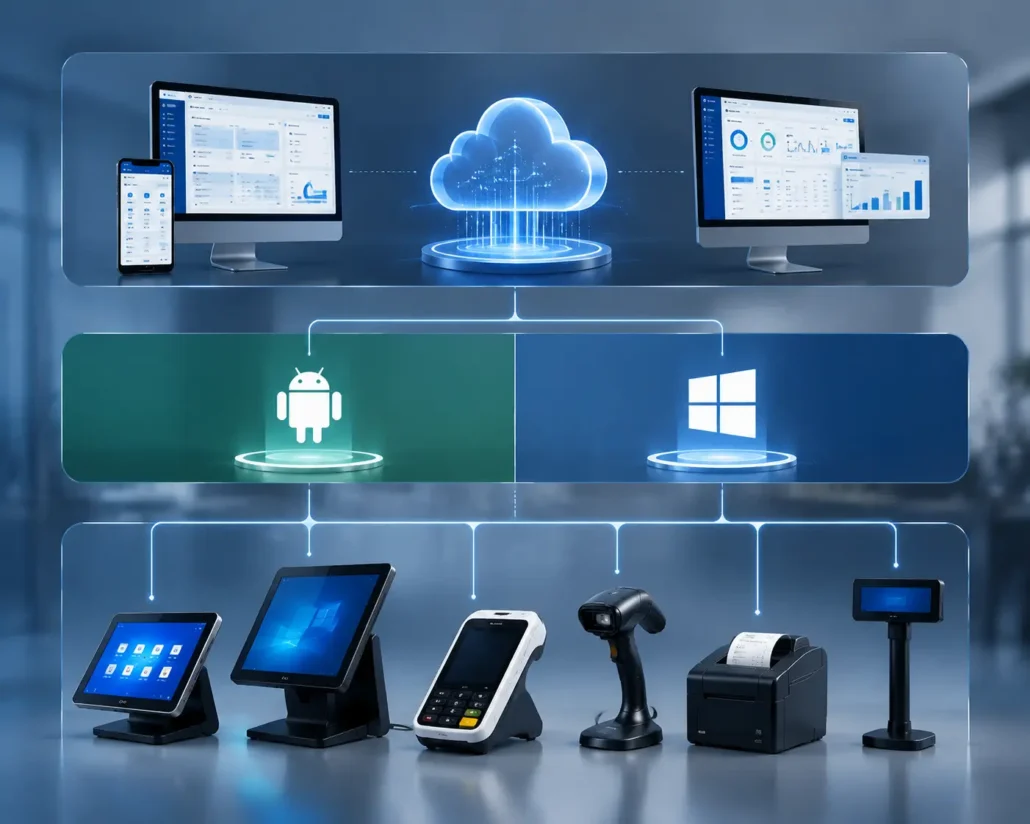
Android and Windows can perform many of the same POS functions.
A customer can check out.
A barcode can be scanned.
A receipt can be printed.
But the environments surrounding the POS application are often different.
Android POS is commonly associated with:
- Touch-first applications
- Compact hardware
- Handheld terminals
- Battery-powered devices
- Wireless communication
- Mobile operations
Windows POS is more commonly found in:
- Fixed retail counters
- Desktop POS software
- Existing business applications
- Multi-peripheral workstations
- Legacy hardware environments
The operating system itself is only one layer of the project.
A complete POS environment may also involve:
- POS application architecture
- Peripheral drivers
- SDKs and APIs
- Device communication
- Payment integration
- Back-office systems
- Remote management
That is why comparing Android POS and Windows POS only by processor, memory or screen size rarely gives a useful answer.
The surrounding system matters more.
Android POS: Naturally Suited to Mobile and Touch-Based Workflows
Android POS hardware is widely available in compact and mobile formats.
That makes it particularly useful when the POS device needs to move with the operator.
Typical applications include:
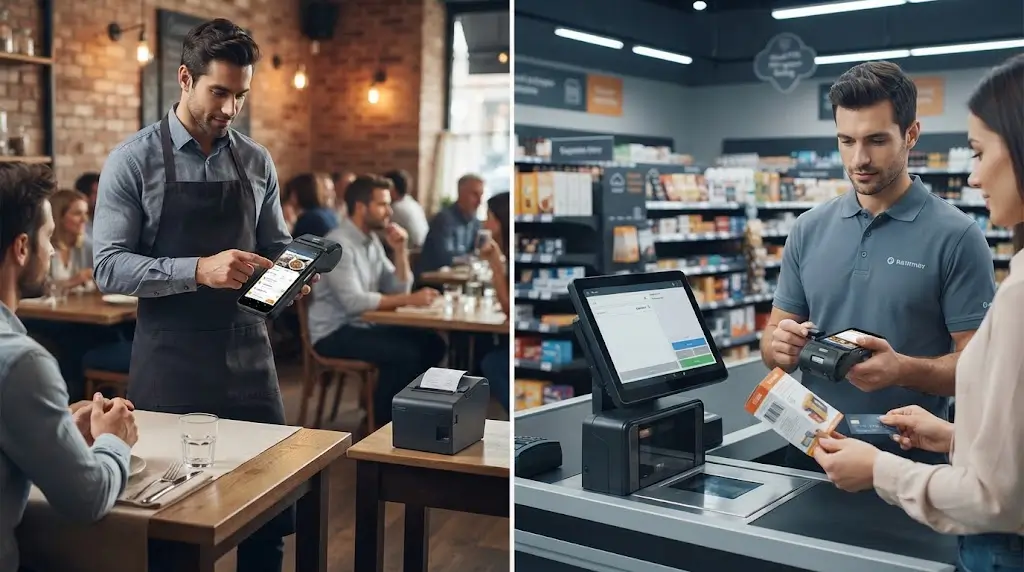
- Restaurant table-side ordering
- Mobile retail
- Delivery
- Queue busting
- Field service
- Event sales
A handheld Android POS terminal can combine several functions in one device, such as:
- Touchscreen
- Battery
- Wi-Fi
- Bluetooth
- Barcode scanning
- NFC
- Integrated thermal printing
This can simplify the workflow when transactions do not happen at one fixed counter.
For example, restaurant staff can enter orders directly at the table instead of returning to a central workstation.
Retail staff can process transactions during busy periods away from the main checkout area.
For these applications, Android is not necessarily “better” software.
The hardware format simply fits the workflow more naturally.
Models such as the SNR-Z108 are relevant for handheld Android POS applications, while the SNR-Z90 and SNR-Z92 are more suitable when mobile operation also requires integrated receipt printing.
Windows POS: Often Built Around Existing Software and Peripheral Ecosystems
For fixed installations, our touchscreen POS terminal solutions include configurations designed for different retail and commercial environments.
Windows remains widely used in fixed retail and commercial POS environments.
One major reason is simple: a large number of existing POS systems were originally developed for Windows.
The software may already communicate with:
- Barcode scanners
- Receipt printers
- Cash drawers
- Customer displays
- Payment terminals
- Inventory systems
- ERP software
- Back-office applications
Those integrations may already be stable.
The drivers have been tested.
The communication methods are known.
The business may already have years of operational experience with the system.
Replacing the terminal with Android hardware does not automatically preserve that environment.
The POS application may need to be rebuilt.
Peripheral integration may need to change.
Windows DLLs or COM communication may need alternatives.
A simple hardware upgrade can quickly become a software migration project.
For projects with an established Windows POS environment, maintaining Windows may therefore be the lower-risk option.
A Windows-based all-in-one POS terminal such as the SNR-DPA9 can be a practical choice when the existing application and peripheral ecosystem are already built around Windows.
Start with the POS Software, Not the Hardware
This is usually the most important step.
Before comparing Android POS terminals and Windows POS systems, confirm what the existing application actually supports.
A project may already have:
- An Android POS application
- A Windows desktop application
- A Web-based POS platform
- A Cloud POS system
- A Cross-platform application
- Legacy software tied to specific hardware
Each situation can lead to a different hardware decision.
If the software already runs reliably on Android, the project can focus on selecting the right hardware form factor.
If the software only supports Windows, changing platforms may involve considerably more than replacing the POS terminal.
When the POS Software Already Supports Android
If the application already runs on Android, hardware selection becomes more straightforward.
The project can focus on operational requirements:
- Fixed or mobile use
- Required screen size
- Barcode scanning
- Integrated or external printer
- Battery operation
- Wi-Fi or Bluetooth connectivity
For example, a compact Android counter application may fit the SNR-Z100.
Restaurant table-side ordering may require a handheld Android POS such as the SNR-Z108.
A mobile transaction workflow that also requires immediate receipt printing may be better suited to the SNR-Z90 or SNR-Z92.
At this stage, the platform has already been decided by the software.
The remaining task is matching the hardware to the workflow.
When the POS Software Depends on Windows
If the existing POS application was developed specifically for Windows, the first question should be whether there is a real reason to move away from that environment.
Sometimes there is.
For example, a business may want to introduce mobile ordering or handheld transactions.
But if the workflow remains largely unchanged and the Windows software is already stable, migration may create work without solving an actual problem.
The existing system may depend on:
- Windows-specific drivers
- COM port communication
- DLL libraries
- Desktop software architecture
- Local database tools
- Legacy peripherals
Moving the application to Android may require redevelopment, testing and long-term maintenance.
That does not mean the project should never migrate.
It means the migration should be justified by the business workflow rather than the appearance of newer hardware.
Android POS vs Windows POS for Different Business Workflows
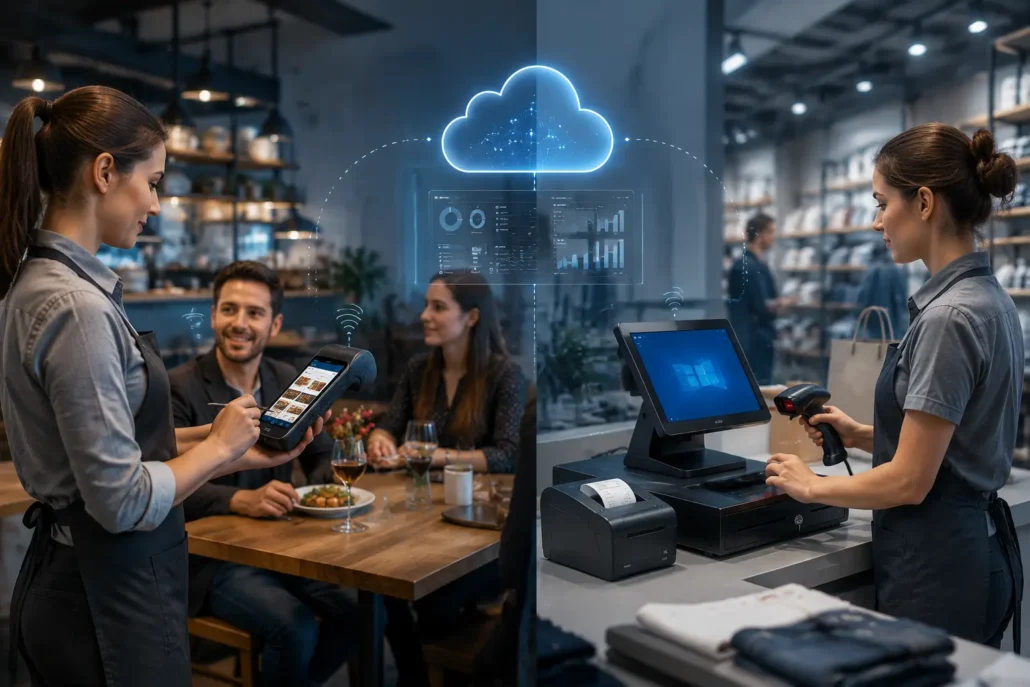
The workflow often reveals the better platform faster than a specification comparison.
A fixed retail counter, a restaurant and a delivery operation may all use POS software.
The way they use the hardware can be completely different.
Fixed Retail Counters
A fixed retail POS workstation may include:
- Touchscreen terminal
- Barcode scanner
- Thermal receipt printer
- Cash drawer
- Customer display
- Payment terminal
Both Android and Windows can work in this environment.
The deciding factor is usually the existing software and peripheral ecosystem.
If the POS application is already Android-based and the required peripherals support Android, a compact Android POS may be enough.
If the project already depends on Windows software, existing drivers and several established peripherals, keeping Windows may reduce migration risk.
For fixed retail counters, there is no universal winner.
The system already in place usually provides the answer.
Restaurants and Table-Side Service
Restaurants often combine fixed and mobile workflows.
A central POS station may handle management and cashier functions.
But staff may also need to enter orders away from the counter.
This is where Android handheld POS hardware becomes particularly useful.
A device such as the SNR-Z108 can support mobile order entry, wireless communication and handheld operation.
For table-side payment or workflows requiring immediate receipt printing, a model such as the SNR-Z90 or SNR-Z92 may be more suitable.
In many restaurant projects, the handheld device does not replace the main POS workstation.
It extends the system into the dining area.
That distinction matters.
The best solution may involve both fixed and mobile devices rather than replacing one platform with another.
Mobile Sales and Delivery
Mobile POS creates a different set of priorities.
The device may operate:
- In vehicles
- At customer locations
- During delivery
- At temporary events
- Away from fixed power
The requirements shift toward:
- Battery life
- Compact size
- Wireless communication
- Touchscreen operation
- Barcode scanning
- Optional receipt printing
Android hardware is generally easier to find in this type of form factor.
For mobile operations, the decision is often driven by the physical environment rather than software performance.
A traditional Windows workstation simply does not fit every mobile workflow.
Complex Multi-Peripheral POS Systems
The situation changes when a POS system connects to multiple external devices.
For example:
- Barcode scanners
- Receipt printers
- Label printers
- Customer displays
- Cash drawers
- Payment terminals
- Weighing scales
- RFID devices
- Serial equipment
The more established the peripheral environment becomes, the more important software compatibility becomes.
A project may already depend on:
- Windows drivers
- COM port communication
- DLL libraries
- Existing middleware
- Vendor-specific SDKs
Android may still support many of these devices.
But compatibility should be tested rather than assumed.
For a mature POS system with several existing hardware integrations, Windows may remain the lower-risk option simply because the entire environment is already built around it.
Peripheral Integration: Where the Real Difference Usually Appears
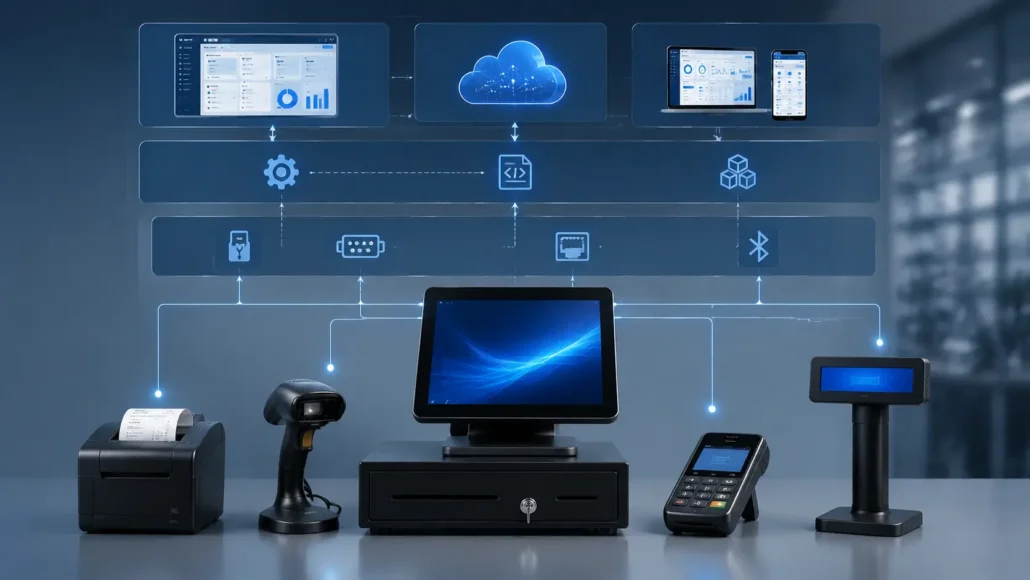
The Android vs Windows decision often looks simple until external devices are connected.
A POS application may run perfectly on both platforms.
Then the project starts adding:
- Barcode scanners
- Receipt printers
- Cash drawers
- Customer displays
- Payment devices
- Legacy hardware
The key question is not:
Can this device connect to Android or Windows?
The more useful question is:
How much work is required to integrate it into the existing POS software?
Barcode Scanners
A standard USB HID scanner may work relatively easily on both platforms.
The scanner sends data much like keyboard input.
More advanced scanners may require:
- Vendor SDKs
- Trigger control
- Configuration tools
- Custom data formatting
- API integration
A scanner that already works with a Windows POS application through a specific SDK may require a completely different integration approach on Android.
The scanner has not changed.
The software environment has.
Receipt Printers
Thermal receipt printers may connect through:
- USB
- Bluetooth
- Serial
- Ethernet
- Wi-Fi
The physical connection is only part of the integration.
Windows applications may use:
- Printer drivers
- Print spoolers
- ESC/POS libraries
- DLLs
- Serial communication
Android applications may use:
- Android SDKs
- Direct USB communication
- Bluetooth APIs
- Network communication
- ESC/POS command libraries
Both approaches can work.
The important part is confirming how the existing POS application communicates with the printer.
The printer integration method should be considered separately from the hardware connection itself. Our thermal receipt printer selection guide can also help when evaluating printer interfaces and software integration.
Payment Terminals and External Payment Devices
Payment integration requires more careful checking.
The available integration method may depend on:
- Payment provider
- Terminal model
- Country
- SDK availability
- API structure
The provider may offer:
- Android SDK
- Windows SDK
- REST API
- Cloud integration
- Proprietary communication protocol
The recommended process is straightforward:
- Confirm the payment provider.
- Confirm the terminal model.
- Check available SDK or API documentation.
- Confirm supported operating systems.
- Test the complete transaction workflow.
The POS hardware should be selected after this information is clear.
Legacy Hardware
Legacy hardware is often the hidden factor in platform decisions.
A business may still rely on:
- Serial printers
- Older barcode scanners
- Industrial scales
- RFID equipment
- Custom controllers
- Proprietary devices
These products may still work perfectly.
The challenge is usually the communication method.
Windows systems often have existing support through COM ports, drivers and long-established SDK environments.
Migrating the same setup to Android can be possible, but it should be treated as an integration project rather than a simple hardware replacement.
Check SDKs, Drivers and APIs Before Ordering Hardware
Before selecting the platform, create a simple compatibility list.
For every required device, confirm:
- Connection method
- Existing software support
- Android compatibility
- Windows compatibility
- SDK or API availability
For example:
| Peripheral | Existing Integration | Android Support | Windows Support |
|---|---|---|---|
| Barcode Scanner | Existing SDK / HID | Confirm | Confirm |
| Receipt Printer | Driver / SDK | Confirm | Confirm |
| Payment Terminal | API / SDK | Confirm | Confirm |
| Customer Display | Driver / Interface | Confirm | Confirm |
| Cash Drawer | Printer / USB | Confirm | Confirm |
This process can identify problems before the hardware is purchased.
Sometimes Android will support every required device.
Sometimes Windows will clearly be the easier path.
Sometimes one legacy peripheral becomes the only reason a project stays on Windows.
Finding that out early is much cheaper than discovering it during deployment.
When Android POS Makes More Sense
Android is often a practical choice when the project requires:
- Mobile operation
- Handheld POS
- Compact hardware
- Battery-powered devices
- Touch-first applications
- Wireless communication
It can be particularly suitable for:
- Restaurant table-side ordering
- Mobile sales
- Delivery
- Queue busting
- Field operations
- Compact retail counters
Android also makes sense for new projects where the software and peripheral ecosystem are being designed from the beginning.
In that situation, the system can be built around Android-compatible SDKs and hardware instead of migrating an existing Windows environment.
When Windows POS Still Makes More Sense
Windows remains practical when the project already depends on:
- Existing desktop POS software
- Windows-specific drivers
- DLL-based integration
- COM port communication
- Legacy peripherals
- Complex fixed workstations
If the existing POS system is stable and the workflow does not require a major change, keeping Windows can reduce redevelopment work.
This is particularly relevant for fixed retail installations with multiple external devices.
A Windows POS system is not automatically the more complex option.
Sometimes it is simply the platform that already works.
Hybrid POS Deployments Can Be a Better Solution
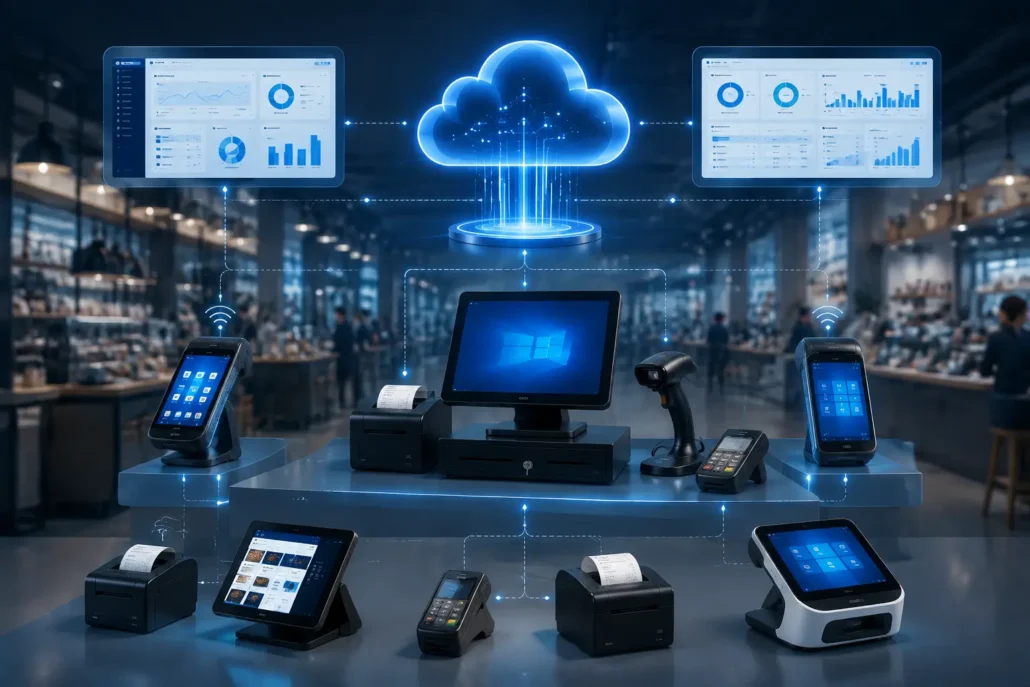
Some projects do not need to choose one platform for the entire system.
A restaurant or retail chain may use:
- Fixed POS stations for central operations
- Android handheld devices for mobile staff
- Different hardware platforms for different workflows
For example, an existing Windows POS workstation can remain at the main cashier station while Android handheld devices are introduced for table-side ordering.
This avoids rebuilding the entire system while still adding mobility where it creates value.
Trying to force every POS function onto one operating system is not always necessary.
The platform should fit the function.
Android POS vs Windows POS: Practical Comparison
| Factor | Android POS | Windows POS |
|---|---|---|
| Mobile hardware | Strong | Limited |
| Battery operation | Common | Less common |
| Handheld form factor | Strong | Limited |
| Fixed retail workstation | Suitable | Strong |
| Existing desktop software | Depends | Often strong |
| Windows-specific drivers | Limited | Strong |
| Compact POS hardware | Strong | Suitable |
| Complex desktop applications | Limited | Strong |
| Multi-peripheral integration | Depends on SDKs | Often established |
This table should be treated as a starting point, not a final decision.
A well-designed Android POS system can support multiple peripherals.
A Windows POS system can also be compact.
The actual software and hardware environment still need to be checked.
Common Mistakes When Choosing Android or Windows POS
Choosing Hardware Before Checking Software
A terminal may have the correct screen size, price and appearance.
That does not mean the existing application supports it.
Confirm the software environment first.
Assuming USB Means Automatic Compatibility
A peripheral may physically connect through USB but still require:
- A driver
- SDK
- API
- Specific communication protocol
Physical connectivity and software compatibility are different things.
Moving to Android Only Because the Hardware Looks Newer
A compact Android POS may look more modern than an older Windows workstation.
That alone is not a reason to migrate.
Platform changes should solve a real business or operational problem.
Assuming Windows Is Always Better for Complex Systems
Complexity alone does not automatically require Windows.
A new Android application with properly supported peripherals can support sophisticated POS workflows.
The key issue is compatibility, not the perceived status of the operating system.
Trying to Standardize Every Device on One Platform
A fixed workstation and a handheld POS device do not always need to run the same operating system.
A hybrid deployment can sometimes reduce development work and improve the workflow at the same time.
Recommended POS Hardware for Different Project Requirements
The platform should be confirmed before the product model.
Once that decision is clear, hardware selection becomes easier.
Compact Android POS — SNR-Z100
Suitable for:
- Small retail
- Cafes
- Counter service
- Compact checkout environments
Best considered when the POS software already supports Android and the peripheral requirements are relatively straightforward.
Handheld Android POS — SNR-Z108
Suitable for:
- Restaurant table-side ordering
- Mobile retail
- Queue busting
- Field operations
The key advantage is mobility rather than simply the Android operating system.
Mobile POS with Integrated Printer — SNR-Z90 and SNR-Z92
Suitable for:
- Mobile sales
- Delivery
- Restaurant service
- Field transactions
These models are relevant when the operator needs both POS functionality and immediate receipt printing in one portable device.
Windows POS Workstation — SNR-DPA9
Suitable for:
- Fixed retail counters
- Existing Windows POS software
- Multi-peripheral workstations
- POS system upgrades
The main consideration is maintaining compatibility with an established Windows software and peripheral ecosystem.
Dual-Screen Retail POS — SNR-DPA8
Suitable for:
- Retail checkout
- Customer-facing display
- Product confirmation
- Promotional display
The dual-screen requirement should be evaluated separately from the operating system decision.
Confirm the software platform first, then select the required display configuration.
For projects requiring different fixed POS configurations, you can also explore our POS terminal hardware range.
How to Make the Final Decision
A practical decision process is usually:
Step 1: Check the POS Software
Confirm which operating system the existing application supports.
That should be the starting point.
Step 2: Define the Workflow
Is the POS operation:
- Fixed
- Mobile
- Table-side
- Counter-based
- Multi-device
The workflow will often determine the most practical hardware format.
Step 3: List Every Required Peripheral
Include all required devices:
- Scanner
- Printer
- Cash drawer
- Customer display
- Payment terminal
- RFID or NFC device
- Scale
- Other external hardware
Step 4: Check SDK and Driver Compatibility
For each important peripheral, confirm:
- Supported operating system
- Available SDK or API
- Existing integration method
- Required development work
Step 5: Test the Complete System
Before large-scale deployment, test:
- POS application
- Target hardware
- Required peripherals
- Network environment
- Actual transaction workflow
A POS terminal can work perfectly in a product demonstration and still encounter problems when connected to the complete production environment.
Testing the real system early is usually worth the time.
The Best Platform Is Usually the One That Creates the Least Integration Friction
Android and Windows are both established POS platforms.
The decision does not need to be ideological.
Android can be a strong choice for mobile, handheld and touch-focused applications.
Windows can remain the more practical choice for existing desktop POS software and established peripheral ecosystems.
In some projects, using both is the better answer.
The question is not:
Which platform is more modern?
It is:
Which platform allows the complete POS system to operate with the least redevelopment work and the lowest deployment risk?
That is usually the platform worth choosing.
Frequently Asked Questions
Is Android POS better than Windows POS?
Not necessarily. Android is often a good fit for mobile, handheld and touch-first POS applications, while Windows can be more practical for existing desktop software and established peripheral environments.
Can Android POS connect to barcode scanners and receipt printers?
Yes. Android POS systems can connect to supported scanners and printers through USB, Bluetooth, Wi-Fi or network communication. The required SDK or communication method should be confirmed before deployment.
Is Windows still used for retail POS systems?
Yes. Windows remains widely used in fixed retail environments, particularly where businesses already use Windows-based POS software and multiple established peripherals.
Can a restaurant use both Android and Windows POS?
Yes. A restaurant can retain a fixed Windows POS workstation while adding Android handheld devices for table-side ordering or other mobile workflows.
Is Android POS suitable for small retail businesses?
Yes, particularly when the POS application already supports Android and the required peripheral environment is relatively simple.
What should I check before choosing Android or Windows POS hardware?
Check the POS software, required peripherals, available SDKs or drivers, payment integration and whether the workflow requires fixed or mobile hardware.
These factors usually matter more than basic hardware specifications.
Planning a POS Hardware Integration Project?
If you are developing or upgrading a POS system, start with the complete project environment rather than the POS terminal alone.
Before selecting hardware, it helps to confirm:
- Existing POS software
- Android or Windows compatibility
- Required peripherals
- Printer requirements
- Barcode scanning
- Customer display
- Payment device integration
- Fixed or mobile workflow
Based on your project requirements, SNROTEK can help evaluate suitable POS hardware configurations for retail, restaurant, mobile and handheld POS applications.
You can send us your software environment, required peripherals and target workflow.
We can discuss your POS hardware project before your project moves into testing or deployment.
Related Articles
- Android POS Terminal Buying Guide
- How to Choose a Handheld Android POS Terminal
- Retail POS Hardware Selection Guide
- POS Receipt Printer Integration Guide
- POS Hardware Integration Guide for System Integrators